Find the plugin that broke your site.
Visitors never notice. Free for WordPress.
The old way hurts
"Deactivate everything, then turn them back on one by one."
That's the standard advice when a site breaks. On a live site it means:
- Shoppers hit an empty cart or a broken checkout while you test.
- Forms, logins and memberships stop working for real visitors.
- With 30 plugins it takes an hour, and you still might miss two plugins that only fail together.
How it works
Three steps, a few minutes
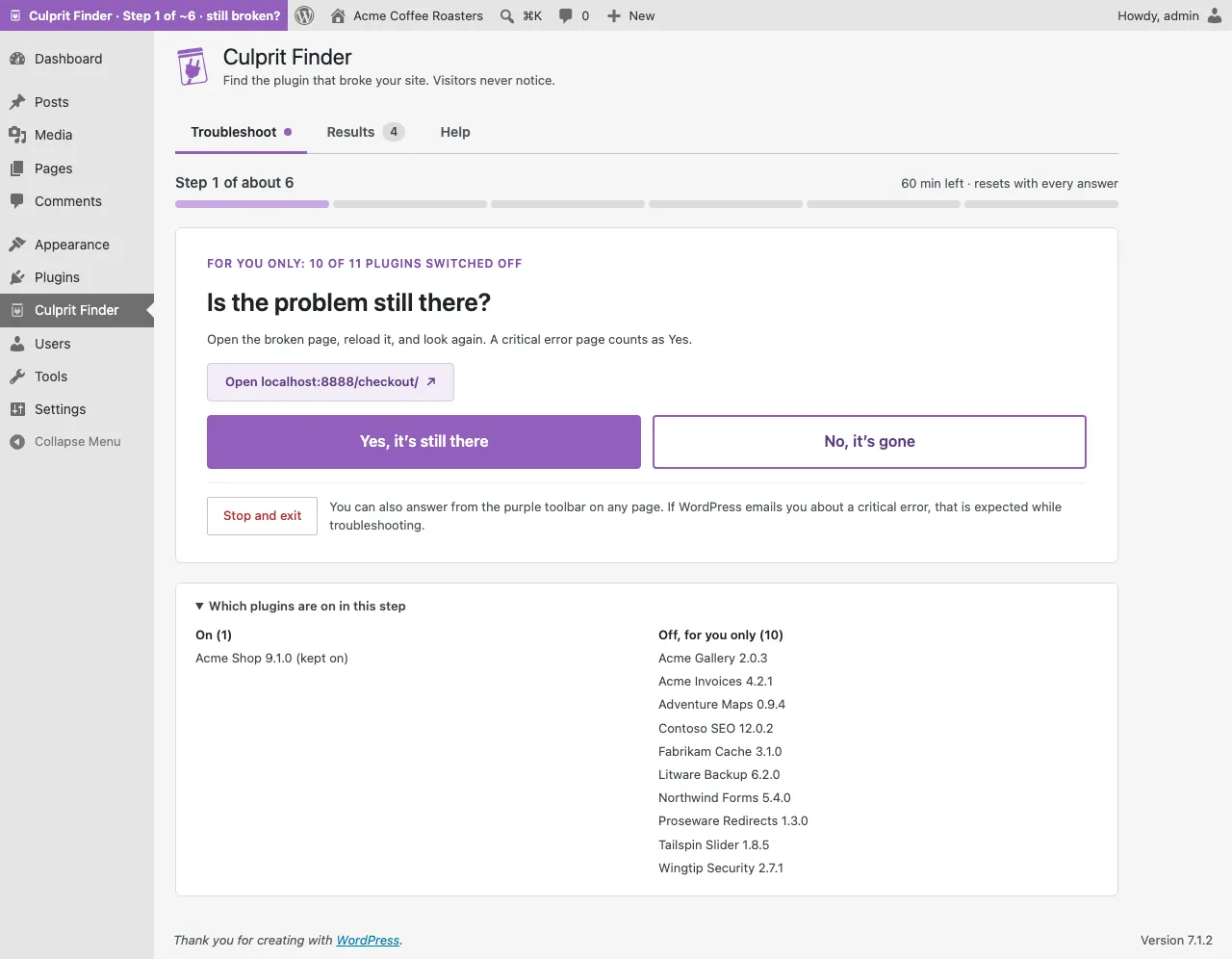
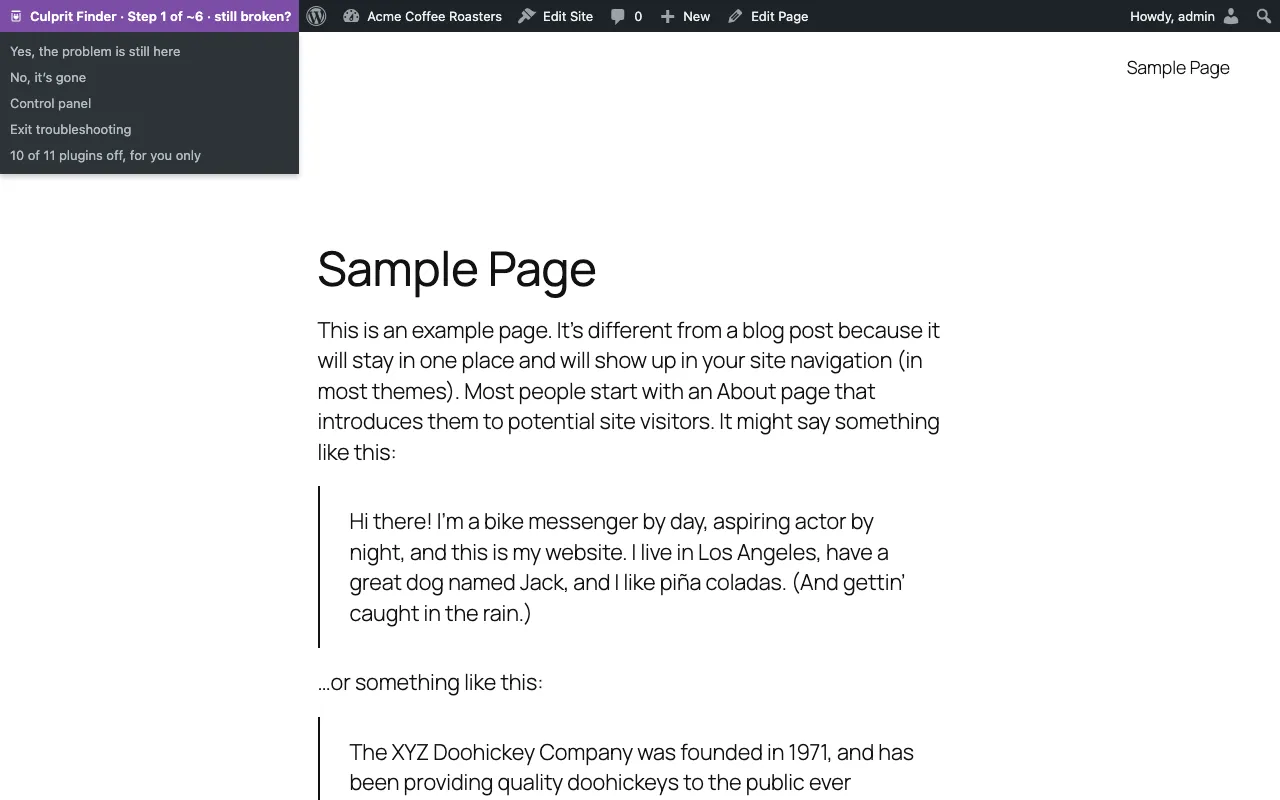
We switch plugins off, for you only
Only your browser sees the change. Everyone else gets the normal site.
You check the page and answer
Is the problem still there? Yes or No. About 7 answers for 30 plugins.
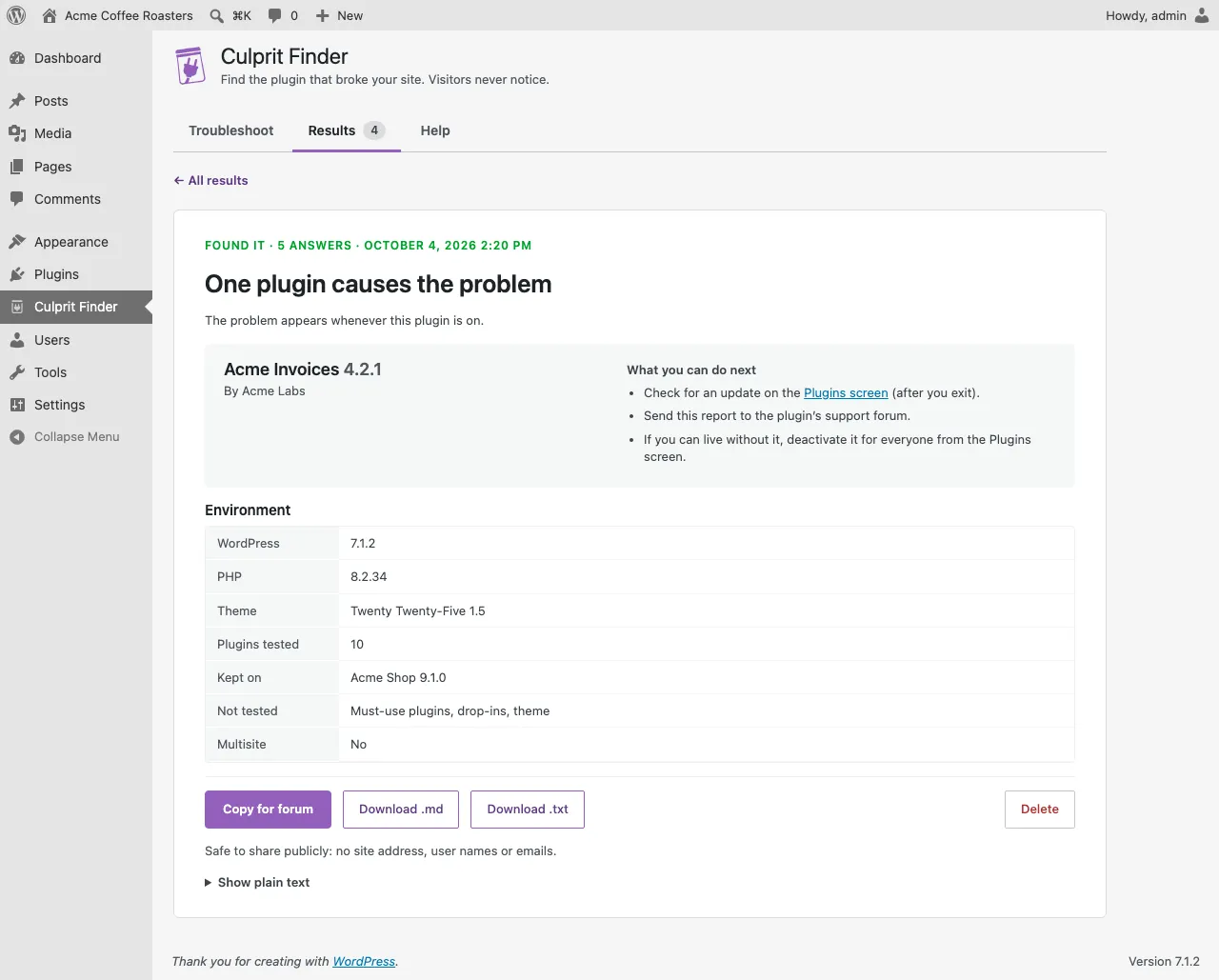
We name the culprit
One plugin, or two that clash, with a report you can paste into a support forum.
See it
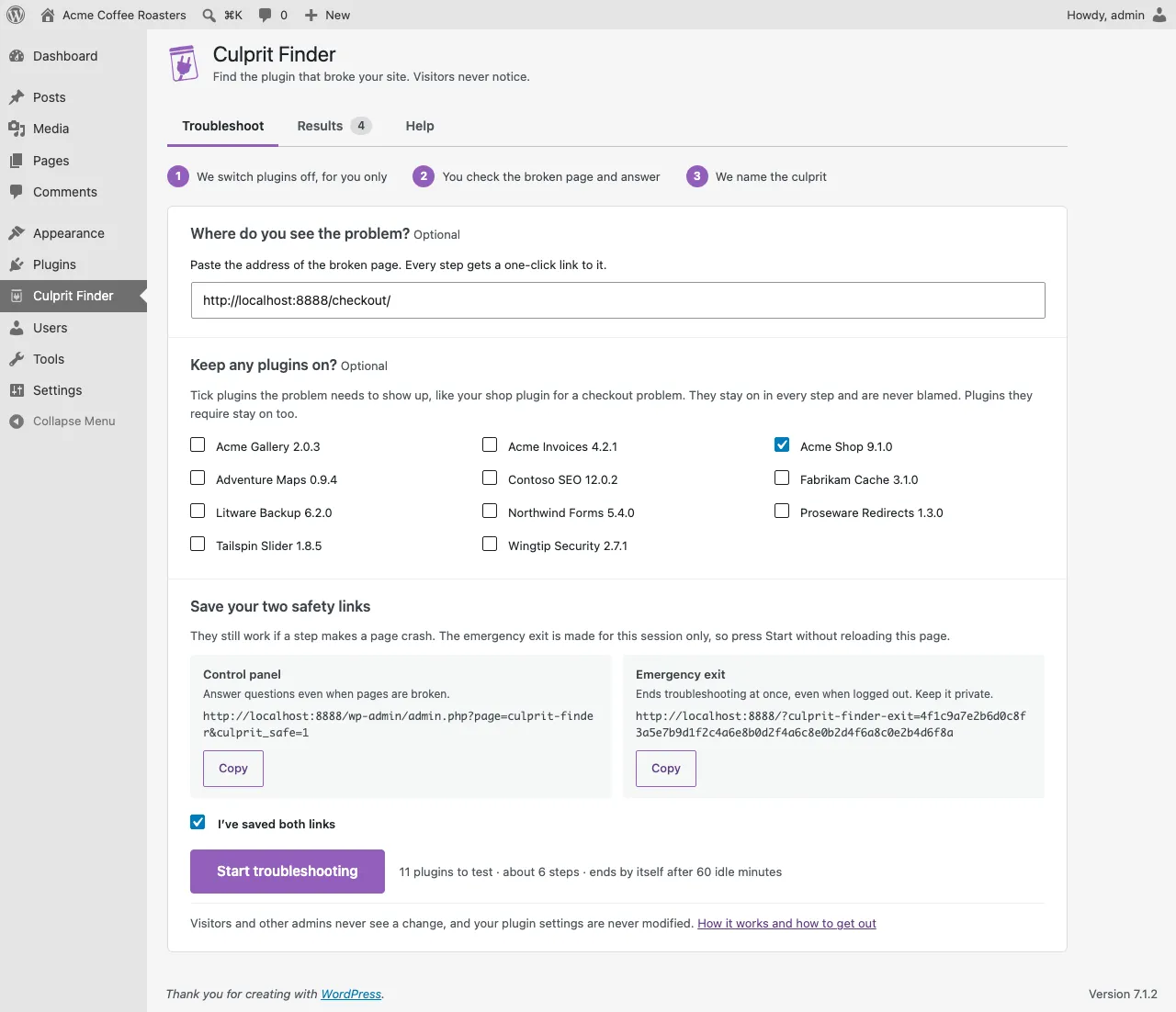
It lives in your WordPress admin
Why it's safe
Your visitors keep the real site
Visitors and other admins see nothing
Plugins are switched off only for requests from your own logged-in browser. Pages filtered for you are marked as not cacheable.
Nothing is deactivated
Your real list of active plugins never changes, not even if another plugin tries to change it during a session.
Nothing leaves your site
No external requests, no tracking, no accounts. Your last 10 results stay in your own database.
Several ways out
An Exit button, an emergency exit link that works even when logged out, and an automatic end after 60 minutes without an answer.
Catches two-plugin conflicts
Some problems need two plugins
Two plugins can each work fine alone and only break together, for example when both define the same function. Turning plugins on one by one often misses that, because each half of your list looks healthy.
Culprit Finder first finds the plugin that completes the problem, then searches the plugins before it for its partner, and finally checks the two together. If more than two plugins are involved, it tells you instead of guessing.
A report support teams love
Paste it, and get help faster
Forum volunteers and plugin authors always ask the same questions. The report answers them, and contains no site address, user names or emails.
### Plugin conflict report (Culprit Finder 0.1.0)
Result: Conflict between two plugins
- Fabrikam Cache 3.1.0
- Tailspin Slider 1.8.5
The problem appears only when both are active.

Environment
- WordPress 7.1.2, PHP 8.3.12
- Theme: Twenty Twenty-Five 1.5
- Plugins tested: 10 (kept on: Acme Shop 9.1.0)
- Not tested: must-use plugins, drop-ins, theme
- Multisite: no

Found in 10 answers on 2026-10-03 (UTC).
Questions
Will my visitors notice anything?
No. Plugins are switched off only for your own browser while you are logged in. Visitors and other administrators always get every plugin.
Does it deactivate my plugins?
No. Your real plugin settings never change. Culprit Finder only decides which plugins load for your browser during a session.
What if a step breaks my site?
That usually means the plugins on in that step are the problem, so answer Yes. Your bookmarked control panel link always loads, even when pages show a critical error.
How do I stop?
Press Exit, open your emergency exit link (it works even when logged out), or simply wait: troubleshooting ends by itself after 60 minutes without an answer.
Does any data leave my site?
No. The plugin makes no external requests and has no tracking. Results stay on your site, and the report contains no site address, user names or emails.
What can’t it test?
Your theme, must-use plugins, drop-ins such as object-cache.php, and server settings. If the problem stays with every plugin off, the result says so.
Find the culprit in a few minutes
Free, open source, and your visitors never notice.