
Your first run
1. Set it up
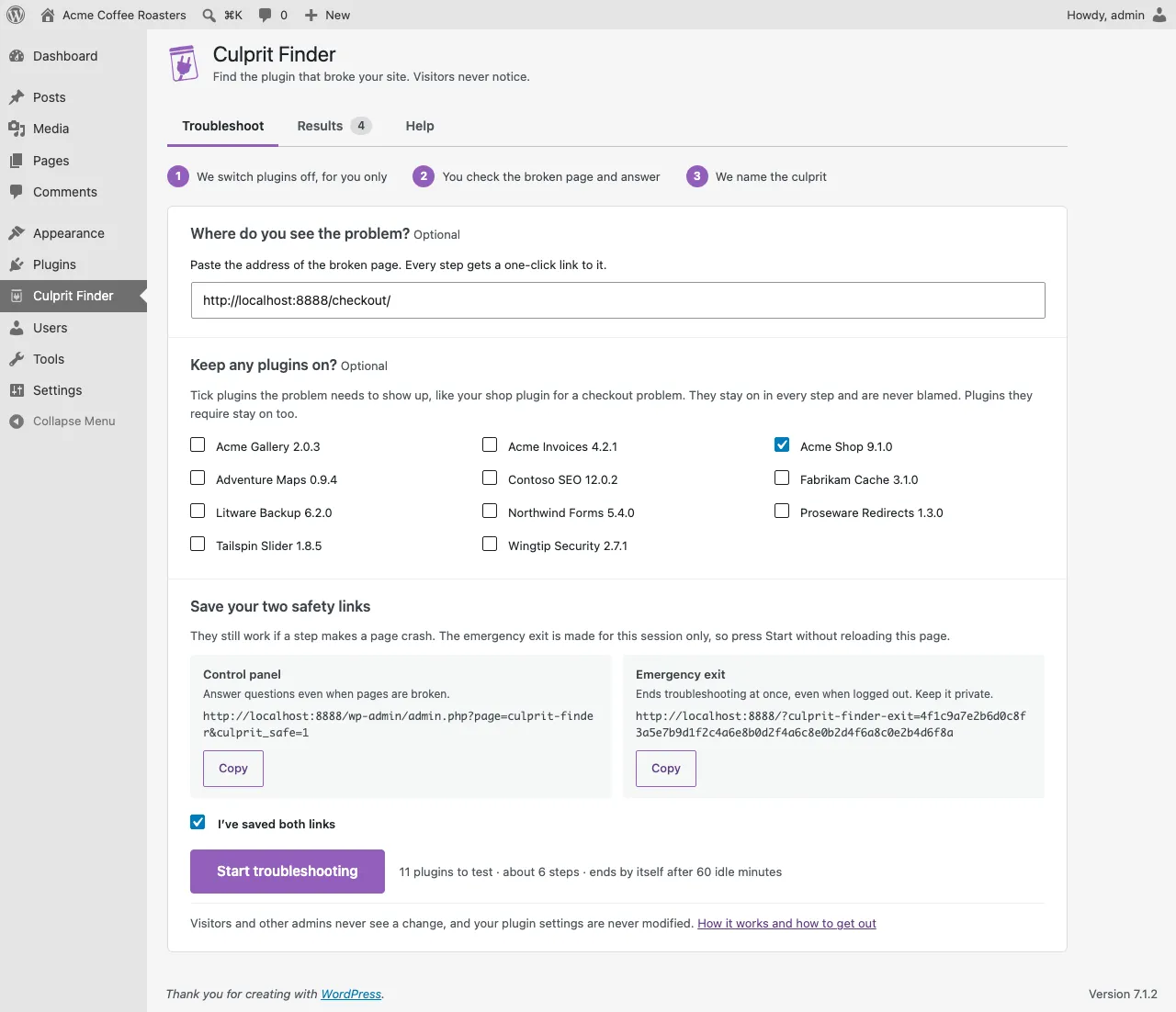
Section titled “1. Set it up”Open Culprit Finder in the admin menu. On the Troubleshoot tab:
- Where do you see the problem? Optionally paste the address of the broken page. Every step then shows a one-click link to it.
- Keep any plugins on? Tick plugins the problem needs to show up, such as your shop plugin for a checkout problem. They stay on in every step and are never blamed. See Keeping plugins on.
- Save your two safety links. Bookmark the control panel and the emergency exit. They keep working even if a step makes pages crash. See Your two safety links.
- Tick I’ve saved both links and press Start troubleshooting.
The emergency exit link is made for this session only. Press Start without reloading the page after you’ve bookmarked it.
2. Answer each step
Section titled “2. Answer each step”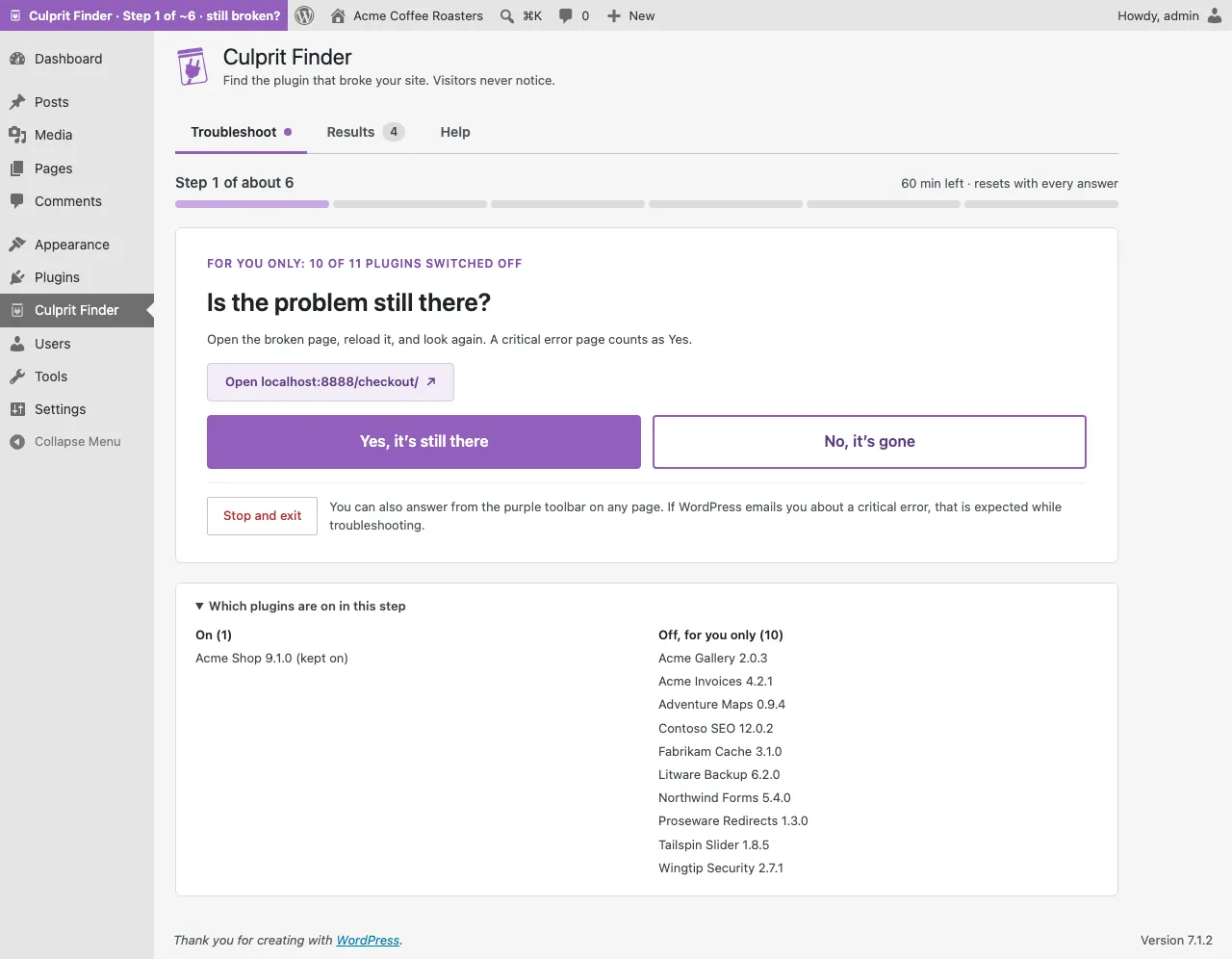
Culprit Finder switches some plugins off for your browser. Open the broken page, reload it, and answer:
- Yes, it’s still there if you still see the problem. A critical error page counts as Yes.
- No, it’s gone if the page works.
You can answer on the Culprit Finder page, from the purple toolbar on any page, or from the dashboard widget. See Answering steps.
3. Read the result
Section titled “3. Read the result”When the search finishes, the Troubleshoot tab shows Result ready. Press View result to see the culprit, what you can do next, and the support report. Your site is back to normal for you while you read it. See Results and reports.
4. Exit
Section titled “4. Exit”Press Done, exit to end the session. If you want to double-check, press Run again instead; it starts a new session with a new emergency exit link.
WordPress is a trademark of the WordPress Foundation. Culprit Finder is not affiliated with or endorsed by the WordPress Foundation.