

Answering steps
Each step switches a different set of plugins off for your browser and asks one question: is the problem still there?
How to check
Section titled “How to check”- Open the broken page (use the Open … button if you entered its address during setup).
- Reload it, so you see the page with the new set of plugins.
- Look for the problem you described.
Answer Yes if you still see it, and No if it’s gone. If the page shows “There has been a critical error on this website”, answer Yes: the plugins on in that step are causing an error.
Three places to answer
Section titled “Three places to answer”- The Culprit Finder page. The Troubleshoot tab shows the step number, a progress bar, the time left, and big Yes, it’s still there / No, it’s gone buttons.
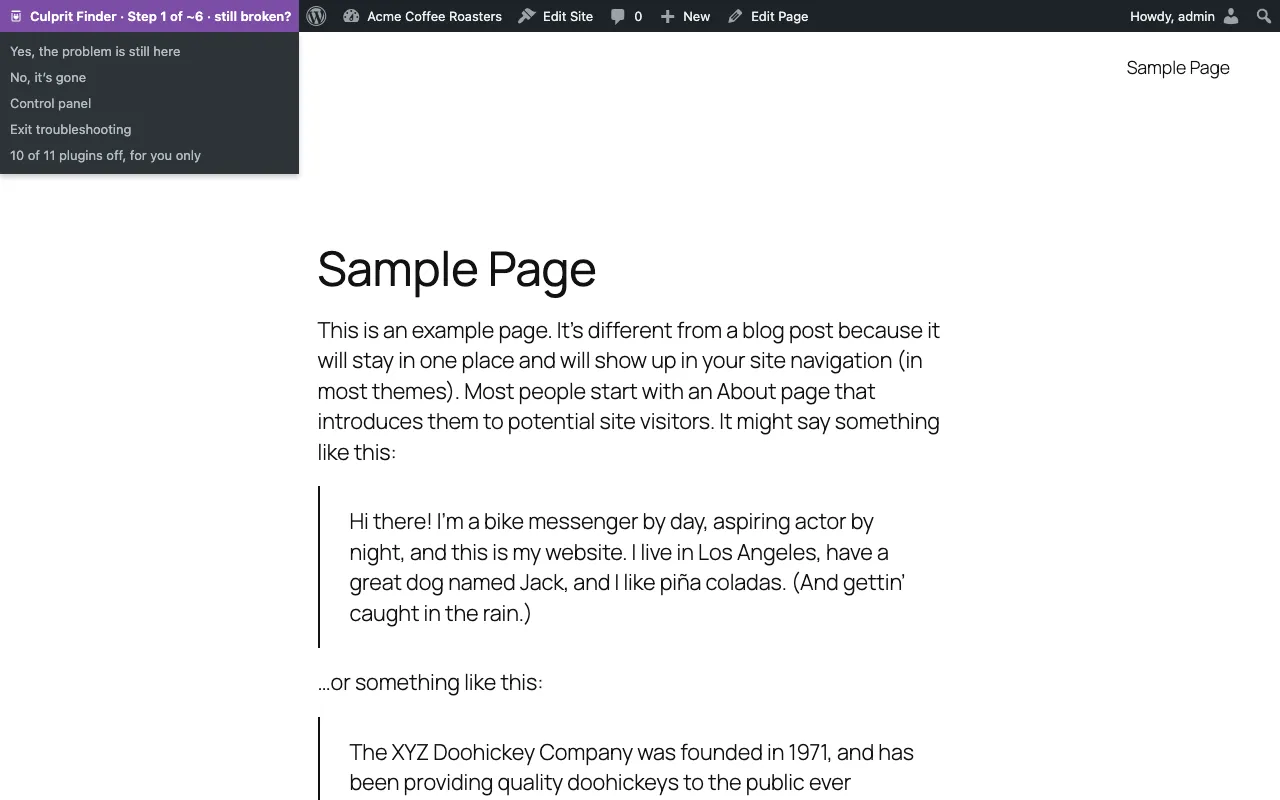
- The toolbar on any page. While a session runs, a purple Culprit Finder · Step X of ~N · still broken? item appears in the WordPress toolbar, on your site and in the admin. Its menu has Yes, No, Undo last answer, Control panel and Exit troubleshooting. After you answer from the toolbar, you go straight back to the same page with the next set of plugins.
- The dashboard widget shows the current step with Yes and No.
When a page won’t load
Section titled “When a page won’t load”If a step makes the page crash, open your bookmarked control panel. It always loads, because it runs with only the plugins you kept on. Answer there. See Your two safety links.
Made a mistake?
Section titled “Made a mistake?”Press Undo last answer. You can undo all the way back to the first question, even after the result is shown.
How long it takes
Section titled “How long it takes”About 7 answers for 30 plugins, because each answer halves the list of suspects. Finding two plugins that only fail together takes a few more. The step counter says “about” because the exact number depends on your answers.
Time limit
Section titled “Time limit”A session ends by itself after 60 minutes without an answer. Every answer resets the timer. The page shows how many minutes are left.
WordPress is a trademark of the WordPress Foundation. Culprit Finder is not affiliated with or endorsed by the WordPress Foundation.